How to Use Pylon with Slack
Last updated: September 24, 2025
Overview
Pylon makes it easy to manage support requests directly in Slack. Conversations stay lightweight, and when something requires action, you can turn it into a trackable ticket.
How It Works
Conversations → Any message you send in this Slack channel starts as a conversation.
Tickets → When a message needs follow-up, it becomes a ticket. Tickets have IDs, are tracked in Pylon, and we’ll work them through to resolution.
How to Create a Ticket
React to your message with the 🎫 emoji, or
Mention @Automat Support in your message.
Pylon will confirm by replying with a ticket number.
How to Check Ticket Status
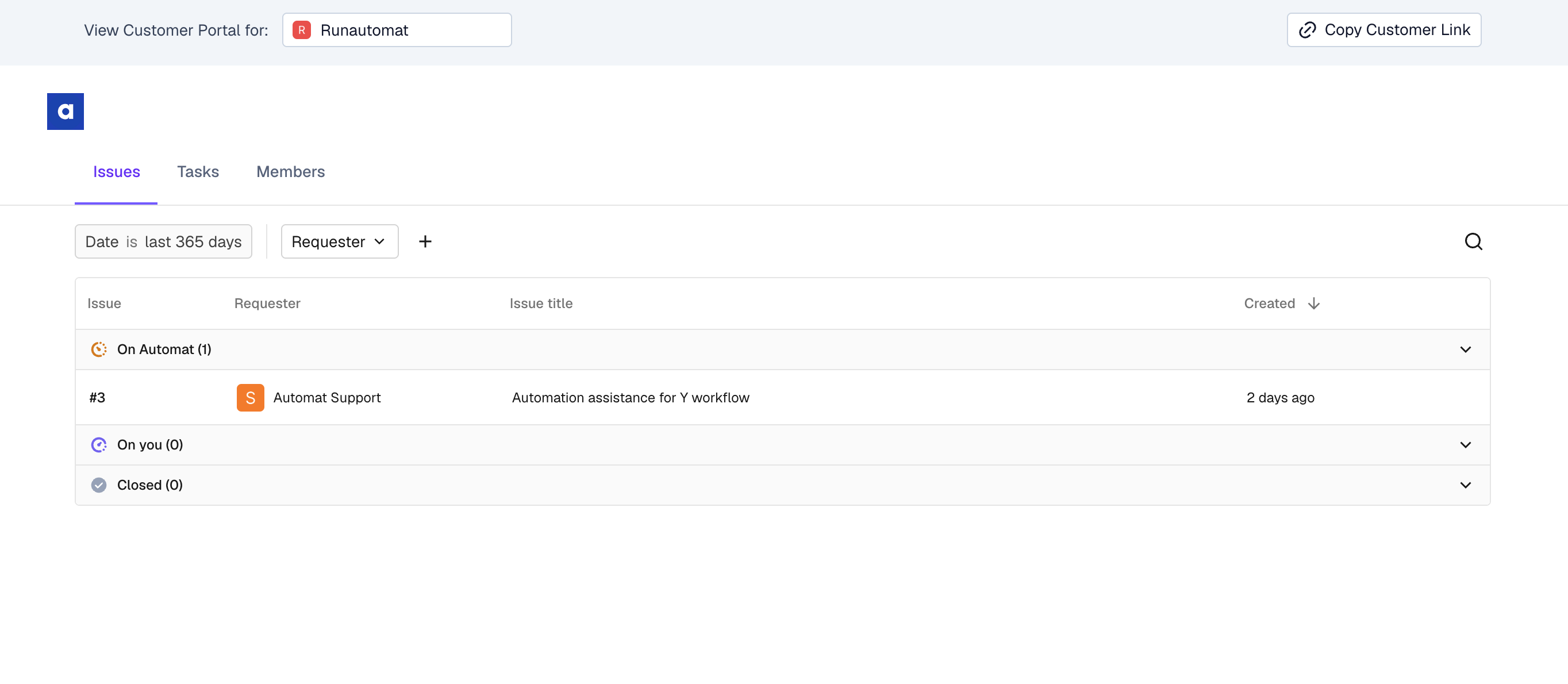
You can review your open tickets anytime in the Customer Portal:
👉 https://portal.usepylon.com/automat
The portal shows ticket status, updates, and any next actions needed.
Key Benefits
Keep using Slack as your primary support channel.
Clear distinction between casual conversation and actionable tickets.
Transparent ticket tracking through the portal.